
You finally found the APK you were looking for, successfully downloaded it, and bypassed the security prompts to install it. But when you tap the icon to launch the app, the screen flashes black, and you are immediately kicked back to your home screen.
App crashes are frustrating, especially when sideloading outside the Google Play Store. Because you are managing the installation manually, there are a few extra variables that can cause software to fail.
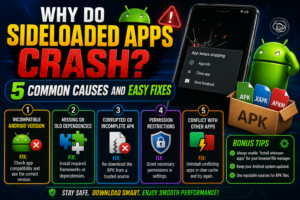
Before you delete the file in frustration, let’s explore the five most common reasons why sideloaded Android apps crash in 2026, and exactly how you can fix them.
1. Missing OBB Data Files (The “White Screen” Error)
This is by far the most common reason heavy games (like BGMI, Free Fire MAX, or Gangstar New Orleans) crash immediately upon launch.
The Problem: Large applications are often split into two parts: the base APK file (which contains the core code) and the OBB file (which contains massive assets like 3D models, textures, and audio). If you only install the APK, the game has no graphics to load and will instantly crash.
The Fix: If the app requires an OBB file, you must place it in the correct system folder manually.
- Use a File Manager to locate the downloaded OBB folder (it usually looks like
com.developer.game). - Move that entire folder into your device’s internal storage following this exact path:
Internal Storage > Android > obb. - Alternatively, look for XAPK files on reputable sites like vipplyzz.pro. XAPK files bundle the APK and OBB together, and you can install them seamlessly using a free XAPK Installer app.
2. Incompatible Device Architecture (32-bit vs. 64-bit)
Not all Android phones speak the exact same machine language.
The Problem: Modern Android devices utilize a 64-bit architecture (arm64-v8a). However, many older apps, or specific APKs uploaded online, were built for older 32-bit (armeabi-v7a) systems. Starting heavily with Android 14 and 15, Google began dropping support for 32-bit apps entirely. If you try to run an old 32-bit APK on a brand-new 2026 flagship phone, the OS simply cannot read the code, resulting in a crash.
The Fix: Check the APK details before downloading. Look for files tagged with arm64-v8a or Universal. If an app is truly outdated (32-bit only), it unfortunately will not run natively on newer hardware without an emulator.
3. Corrupted APK Downloads
Sometimes, the simplest explanation is the correct one.
The Problem: If your internet connection drops for even a microsecond while downloading a large APK file, the package can become corrupted. Android’s package installer might still try to install it, but the missing fragments of code will cause a fatal error when you launch the app.
The Fix: Delete the current APK from your Downloads folder. Ensure you are connected to a stable, strong Wi-Fi network (rather than spotty cellular data), and download the file again from a trusted source.
4. Insufficient Storage and RAM Caching
Mobile apps require room to breathe.
The Problem: An app might only be 100 MB to download, but when it extracts itself and begins caching data, it might need 500 MB. Furthermore, if your phone’s RAM (Random Access Memory) is completely clogged by background apps, the OS will aggressively kill the newly launched app to keep the phone from freezing.
The Fix:
- Clear Storage: Go to your device settings and ensure you have at least 1 GB of free internal storage.
- Clear Cache: Go to
Settings > Apps, find the app that is crashing, tapStorage, and hitClear Cache. - Free Up RAM: Close all background applications before launching a heavy, sideloaded game.
5. Over-Restrictive Battery Optimization
Android is incredibly aggressive about saving battery life, which can sometimes break apps.
The Problem: If an app requires constant background syncing (like a messaging app or a custom widget) but the Android OS flags it as a battery drain, the system will forcefully close the app in the background, causing it to crash or stop sending notifications.
The Fix:
- Go to
Settings > Appsand select the app that keeps crashing. - Tap on
Battery(or Battery Usage). - Change the setting from “Optimized” or “Restricted” to “Unrestricted.” This allows the app to run freely without the OS terminating its processes.
Conclusion
Sideloading requires a bit more technical know-how than relying on an automated app store, but understanding these common hurdles makes the process much smoother. Always ensure you have the correct OBB data, a stable internet connection, and enough storage space, and you will rarely encounter a fatal crash again.
Leave a Comment