
The freedom to install applications from outside the official Google Play Store—known as “sideloading”—is one of the greatest advantages of the Android operating system. However, this freedom comes with a significant responsibility: ensuring the files you download are safe.
In 2026, cyber threats have evolved. Malicious actors frequently disguise spyware, ransomware, and aggressive adware as popular games or utility applications. If you download an Android Package Kit (APK) from an untrustworthy source, you could be handing over the keys to your personal data.
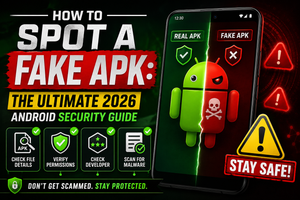
In this comprehensive guide, we will walk you through the essential steps to verify the authenticity of an APK file before you hit “Install,” helping you keep your device and your identity secure.
1. Understand the Risks of Sideloading
Before learning how to spot a fake, you must understand why fakes exist. Hackers create modified (MOD) or counterfeit APKs for several reasons:
- Credential Harvesting: Fake apps are designed to look identical to banking or social media apps, tricking you into typing your username and password directly into the hacker’s database.
- Cryptojacking: Some fake apps silently hijack your phone’s processor in the background to mine cryptocurrency, which severely drains your battery and degrades your hardware.
- Ad-Fraud: These apps bombard you with invisible advertisements, consuming your mobile data and generating illicit revenue for the creator.
2. Verify the Source (The Easiest Defense)
The single most effective way to avoid a fake APK is to scrutinize where you are downloading it from.
Red Flags of a Dangerous Website:
- Promises of “Unlimited Everything”: If a site is offering a “Premium Unlocked,” “Infinite Coins,” or “No Ads MOD” version of a normally paid app, do not download it. Tampering with an app’s core code to bypass payment systems is the easiest way for hackers to inject malware.
- Excessive Pop-ups and Fake Download Buttons: Malicious sites often feature a maze of fake “Download Here” buttons that redirect you to sketchy advertising networks or automatically download unrelated files.
- Lack of SSL/HTTPS: If your browser warns you that the connection is not secure (missing the padlock icon in the URL bar), leave the site immediately.
Signs of a Trustworthy Source: Reputable APK directories will always have transparent security policies. Look for sites that explicitly state they only host original, unmodified files (like we do here at vipplyzz.pro) and provide clear information about the app’s version history and developer.
3. Analyze the File Name and Size
Before installing an APK, look closely at the file itself in your device’s “Downloads” folder.
- The Package Name: The file name should closely match the official package name. For example, the official WhatsApp APK is often named something resembling
com.whatsapp. If you download a game and the file is namedupdate_flash_player.apkorsystem_patch_2026.apk, delete it instantly. - File Size Discrepancies: If you are downloading a massive 3D open-world game, the APK (or XAPK) should be hundreds of megabytes or even gigabytes. If the file you downloaded is only 2 MB, it is a fake payload designed to download malware later.
4. Utilize Checksums (Advanced Verification)
For maximum security, you can verify the file’s cryptographic hash, known as a checksum (usually SHA-256).
A checksum is a unique string of letters and numbers generated based on the file’s exact contents. If a hacker alters even a single line of code in the APK to add malware, the checksum will change completely.
- Find the official SHA-256 hash provided by the original developer (often found on their official GitHub or website).
- Use a free hash checker app or website to scan the APK you downloaded.
- If the hash you generate matches the developer’s hash exactly, the file is 100% authentic and untouched.
5. Pay Attention to Installation Permissions
Android’s built-in security features are your final line of defense. When you open an APK to install it, your phone will display a list of permissions the app is requesting. Read this list carefully.
Context is everything.
- If you are installing a Flashlight app, it only needs permission to access your camera (specifically the flash component). If it asks for permission to read your SMS messages, access your contacts, or view your precise location, cancel the installation.
- If a simple offline Calculator app asks for permission to make phone calls or access the internet, it is almost certainly malware.
6. Always Keep Google Play Protect Enabled
While you may be downloading apps outside of the Play Store, you should still utilize Google’s built-in security engine.
Google Play Protect actively scans your device and any newly installed apps for known malicious behavior. Never disable Play Protect, even if a website instructs you to do so to install a specific “modded” app. If Play Protect flags an APK you are trying to install as harmful, trust the system and delete the file.
Conclusion
Sideloading Android apps gives you access to a vast world of software, beta updates, and region-locked games. By practicing digital hygiene—avoiding “cracked” software, scrutinizing permissions, and only downloading from trusted repositories—you can enjoy the open ecosystem of Android safely.
Have you ever encountered a fake APK? What red flags did you notice? Share your experiences in the comments below to help others stay safe!
Leave a Comment