
Every time you install a new application on your Android device—whether from the Play Store or by sideloading an APK—you are inviting a new piece of software into your digital life.
Smartphones contain our most sensitive data: our live locations, our banking details, our private photos, and our conversations. The barrier standing between a new app and your private data is the Android Permissions System.
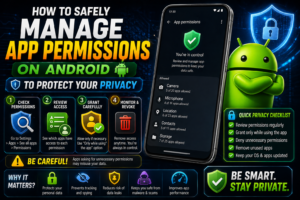
Many users simply tap “Allow All” to get through the installation screens as quickly as possible. In 2026, this is a dangerous habit. Understanding and managing app permissions is the most crucial step you can take to protect your digital privacy.
What Are App Permissions?
App permissions are specific security privileges that an application must request from you (the user) before it can access certain hardware features or sensitive data on your phone.
By default, Android operates in a “sandbox.” An app is isolated and cannot interact with the rest of your phone until you explicitly grant it permission to do so.
The 4 Most Critical Permissions to Monitor
While some permissions are harmless (like a game asking to vibrate the phone), others can be highly invasive if granted to the wrong application. Always scrutinize these four permissions:
1. Location (Precise vs. Approximate)
- What it does: Allows the app to track exactly where you are using GPS.
- Who needs it: Navigation apps (Google Maps), ride-sharing apps (Uber), and fitness trackers.
- Red Flags: A basic calculator, an offline puzzle game, or a simple photo editor does not need to know where you live.
- The 2026 Best Practice: Android now allows you to grant “Approximate Location” instead of “Precise.” For a weather app, approximate location is perfectly fine. Furthermore, always choose “Allow only while using the app” rather than “Allow all the time” to prevent background tracking.
2. Camera and Microphone
- What it does: Allows the app to silently record audio or take pictures.
- Who needs it: Social media apps (Snapchat, Instagram), communication apps (WhatsApp), and video editors (CapCut).
- Red Flags: If a solitaire game or a generic utility app requests microphone access, deny it immediately.
- The 2026 Best Practice: Look for the green dot indicator in the top right corner of your Android status bar. If you see it illuminated when you are not actively taking a photo or on a call, an app is accessing your camera or mic in the background.
3. Contacts and Call Logs
- What it does: Allows the app to read every phone number, email, and name saved in your device, as well as your incoming and outgoing call history.
- Who needs it: Dialer replacements and messaging apps.
- Red Flags: Many malicious apps request this permission to harvest your friends’ and family’s data, selling it to telemarketers or using it for phishing scams. Deny this permission to almost every app unless absolutely necessary for communication.
4. Storage (Files and Media)
- What it does: Allows the app to read, modify, or delete files, photos, and videos on your internal storage.
- Who needs it: Photo editors, file managers, and heavy games that need to load OBB data.
- The 2026 Best Practice: Modern Android versions (Android 14/15) introduced “Scoped Storage.” Instead of giving an app access to your entire hard drive, you can now select “Allow access to select photos.” Always use this option when a social media app wants you to upload a picture, rather than giving it free rein over your entire gallery.
How to Audit Your Existing Permissions
You don’t just have to worry about new apps; you should regularly check what permissions your existing apps are holding.
- Open your Android Settings.
- Navigate to Privacy > Permission Manager (or simply search “Permissions” in the settings bar).
- Here, you will see a list of categories (Camera, Location, Microphone, etc.).
- Tap on “Camera,” for example, to see exactly which apps currently have permission to use it.
- If you see an app that shouldn’t have access, tap on it and select “Don’t Allow.”
Conclusion
Apps shouldn’t have unrestricted access to your life. When sideloading APKs, the responsibility of managing security falls squarely on your shoulders. Take an extra five seconds during installation to read what an app is asking for. If a request feels unnecessary or intrusive, deny it. A well-built app will still function without non-essential permissions, and your privacy will remain intact.


❤️🩹❤️🩹❤️🩹