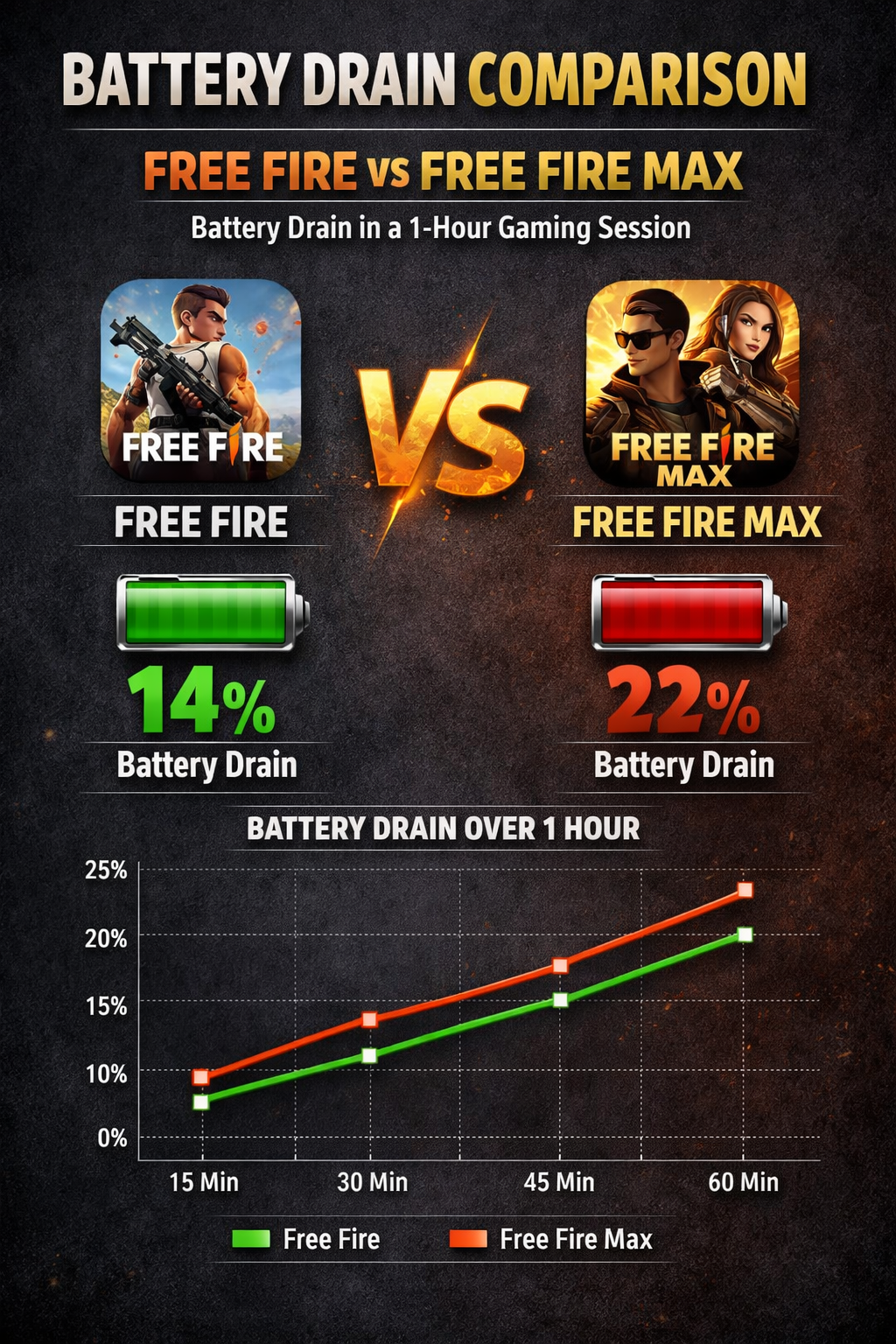
Let’s be completely honest with each other. If you are searching for exactly how to play free fire max in low device without your phone turning into a frying pan, you are not alone. When I first started playing Free Fire way back in 2017, I was using a cheap Android phone with barely 2GB of RAM. The screen would freeze every time a full squad rushed me, and my Gloo Walls would place a full second after I tapped the button.
Fast forward to 2026. Garena has pushed the boundaries of mobile gaming with Free Fire Max. They added ultra-HD textures, cinematic reload animations, realistic vehicle sounds, and massive draw distances. While this looks incredible on an iPhone 15 Pro Max or an ASUS ROG Phone 8, it is an absolute nightmare for budget smartphones.
But what if you have to play the Max version? Maybe you want to build custom maps in Craftland, or maybe your esports tournament requires it. If you are stuck with a 3GB or 4GB RAM phone, do not panic. You do not need to buy a $1,000 gaming phone to reach Grandmaster.
In this massive, 2500-word technical masterclass, I am going to show you the ultimate guide on how to play free fire max in low device. We are going to dig deep into your Android Developer Options, rip apart the “FF MAX” specific settings tab, manage your thermal throttling, and even adjust your actual physical gameplay to compensate for frame drops. Grab your phone, open your settings, and let’s optimize your machine.
1. The Hardware Reality: Why Does Free Fire Max Lag?
Before we start changing settings, you need to understand the enemy. Why does your phone lag? It is usually a combination of three bottlenecks: RAM, GPU, and Heat.
The RAM Bottleneck (Random Access Memory)
Free Fire Max is a heavy application. The base game is over 1GB, and with all expansion packs downloaded, it can swell to 5GB+. When you drop into Bermuda, your phone has to load the textures of the buildings, the 3D models of 50 different players, and their glowing Evo gun skins into its active RAM.
If you only have 3GB of RAM, and your phone’s operating system (Android) is using 1.5GB just to keep your phone running, you only have 1.5GB left for the game. When the game asks for more memory than you have, the phone has to constantly swap data in and out of the slower internal storage. This constant swapping is what causes the screen to “freeze” or stutter for half a second.
Thermal Throttling (The Silent Killer)
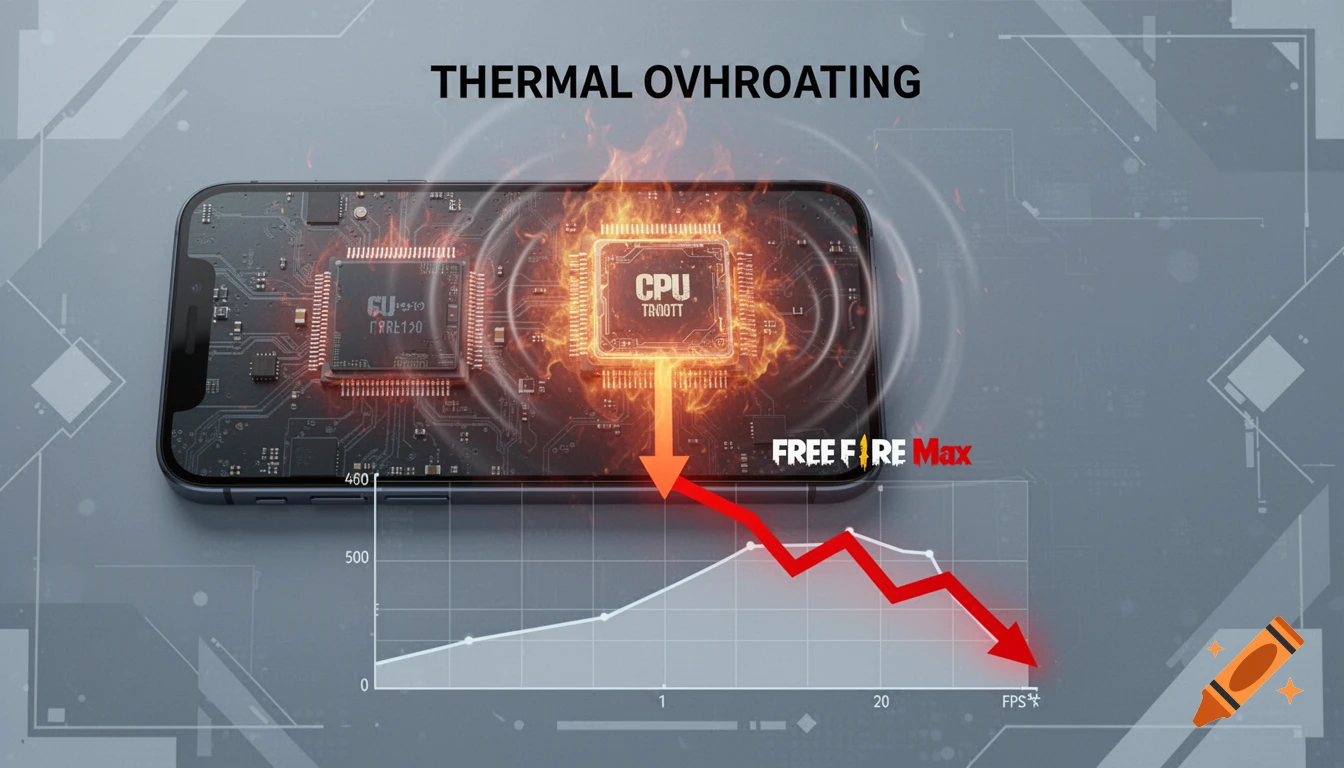
This is the biggest secret in mobile gaming. When you ask a budget processor to render realistic shadows and HD textures, it works at 100% capacity. This generates massive amounts of heat. Because smartphones do not have internal cooling fans like PCs, the heat has nowhere to go.
When the internal temperature hits a critical limit, the phone’s brain activates a safety protocol called “Thermal Throttling.” It intentionally slows down the processor to stop it from melting. The moment this happens, your game goes from 60 FPS down to 20 FPS. Your touch screen becomes unresponsive. Your drag headshots fail.
2. The Ultimate Guide on How to Play Free Fire Max in Low Device: In-Game Settings
The very first step in learning how to play free fire max in low device smoothly is brutal honesty. You must sacrifice how the game looks to save how the game plays. Do not let your ego force you to use “Ultra” graphics. A dead player with HD shadows is still a dead player.
Step A: The Standard Graphics Tab
Open your Free Fire Max settings and go to the Display tab.
- Graphics: Set this strictly to SMOOTH. Not Standard, not Ultra. Smooth. This disables high-resolution textures, removes dynamic shadows, and flattens the lighting. It makes the game look like old-school Free Fire, which is exactly what your processor needs to breathe.
- High Res: Set to NORMAL.
- Shadows: Set to OFF. Shadows are the most CPU-intensive graphic setting in any video game. Turning them off alone will give you a massive performance boost.
- High FPS: This is the golden rule. Set this to HIGH. Even on Smooth graphics, you want the game engine attempting to push 60 frames per second. A game running at Smooth/High FPS will always feel more responsive for Drag Headshots than a game running at Standard/Normal FPS.
Step B: The “FF MAX” Specific Settings Tab
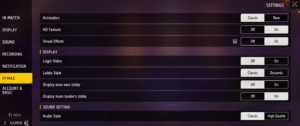
This is where the magic happens. Garena actually gave us the tools to turn Free Fire Max back into normal Free Fire. Scroll down to the very bottom of your settings menu and click on the FF MAX tab.
You need to turn practically everything here OFF or to CLASSIC.
- Login Video: Turn OFF. You don’t need your phone struggling to render an HD video before you even hit the lobby.
- Lobby Style: Set to CLASSIC. The 360-degree interactive 3D lobby in Max is cool, but it eats up your RAM. The classic 2D lobby keeps your phone cool while you wait for your squad to ready up.
- Audio Style: Set to CLASSIC. The new realistic audio engine in Max calculates echoes and distance muffling. The classic audio is flat, takes zero processing power, and honestly makes it easier to pinpoint enemy footsteps anyway.
- Animation: Set to CLASSIC. This is crucial for movement. The “New” animations in Max include heavy reload sequences and realistic running gaits. They look heavy, and they feel heavy. Classic animations are stiff, fast, and skip unnecessary frames, allowing for faster Gloo Wall sit-ups.
- Visual Effects: Turn OFF. This disables the bullet tracers, the dust kicking up when you run, and the sparks when bullets hit metal. These particle effects cause massive frame drops during intense 4v4 Clash Squad fights.
- HD Texture & Vehicle Effects: Turn OFF.
3. Essential Android Settings: How to Play Free Fire Max in Low Device Like a Pro
If you have applied all the in-game settings and your phone is still lagging during a house rush, we need to go deeper. We need to tweak the Android Operating System itself. Welcome to Developer Options.
Disclaimer: Changing Developer Options alters how your phone handles memory. Follow these instructions carefully. Do not change settings that you do not understand.
Unlocking Developer Options
If you haven’t done this yet, go to your phone’s Settings > About Phone. Find the Build Number and tap it rapidly 7 times. You will see a popup saying, “You are now a developer!”
Go back to your main Settings menu, find System, and open Developer Options.
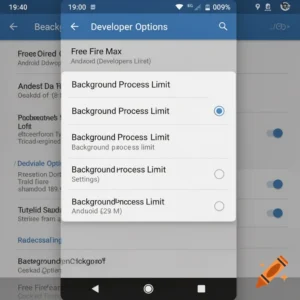
Tweak 1: Background Process Limit (The RAM Saver)
This is the most powerful trick for 3GB/4GB RAM phones. When you are playing Free Fire, apps like WhatsApp, Instagram, and Chrome are secretly running in the background, stealing your precious RAM to check for notifications.
- Scroll down in Developer Options until you find the Apps section.
- Tap on Background process limit.
- By default, it is set to “Standard limit”. Change it to “At most 1 process” or “No background processes”.
What this does: It forces your phone to dedicate 100% of its available RAM strictly to Free Fire Max. If someone messages you on WhatsApp, it won’t load the message into memory until you close the game. This eliminates mid-game stuttering completely. (Remember to change this back to Standard when you are done playing!).
Tweak 2: Window Animation Scales (The Speed Illusion)
Your phone uses processing power to animate menus opening and closing.
- Find the Drawing section.
- Look for three settings: Window animation scale, Transition animation scale, and Animator duration scale.
- Change all three from “1x” to “0.5x” or turn them “Animation off”.
This doesn’t give you more FPS in the game, but it frees up tiny bits of CPU power and makes your entire phone feel twice as fast.
Tweak 3: The “Force 4x MSAA” Trap
Many fake YouTube tutorials will tell you to turn ON “Force 4x MSAA” to make your game smoother. DO NOT DO THIS.
MSAA stands for Multisample Anti-Aliasing. It is a graphic enhancement tool that smooths out the jagged edges of pixels to make the game look prettier. Turning this on forces your weak GPU to work 4 times harder. It will cause your phone to overheat in 5 minutes and cause extreme thermal throttling lag. Make sure this setting is turned OFF.
4. The Download Center Strategy (Storage Management)
Another massive secret regarding how to play free fire max in low device is managing your physical storage. Your phone’s storage (ROM) directly impacts its RAM performance. If your 64GB phone has 63GB full, your phone will crawl to a halt.
The Golden Rule of Storage
You must keep at least 15% to 20% of your phone’s total storage completely empty at all times. The Android OS needs empty space to use as “Virtual RAM” (swap space) when things get heavy.
Managing the Free Fire Download Center
Open Free Fire Max and click the little cloud icon at the top middle of the lobby screen. This is the Download Center.
If you see a button that says “Download All,” do not click it. If you have already downloaded everything, click the trash can icon and delete the following:
- The Costume/Outfit Collection Packs: Delete them entirely. Yes, this means all the enemies in your match will look like default characters (Adam/Eve). This is actually an advantage! If you don’t have to render 50 different HD animated Evo bundles with glowing wings, your phone’s processor will sigh with relief. Plus, it makes spotting enemies much easier because default clothes don’t blend into the environment well. (You can manually download just the specific outfit you want to wear).
- Unused Maps: Do you hate playing on Alpine? Delete it. Do you never play Nexterra? Delete it. Only keep Bermuda and Purgatory (or whatever your ranked rotation demands). This saves gigabytes of space.
- Pet & Weapon Skins: Similar to outfits, only download the specific gun skins you own and use. Let the enemy’s guns render as default grey weapons.
5. Pre-Game Physical Maintenance (Controlling the Heat)
We discussed Thermal Throttling earlier. If your phone gets hot, you lose. Here are the physical steps you must take before you even queue up for a Ranked match.
1. Remove the Phone Case
Phone cases (especially thick rubber, leather, or heavy-duty plastic ones) act as insulators. They trap the heat generated by the battery and the CPU against the back of the phone. When playing a heavy game like Free Fire Max, you must take the case off. Let the glass/metal back of the phone breathe.
2. The Fan Technique
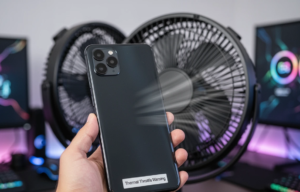
If you cannot afford a clip-on gaming cooler (like a Black Shark magnetic cooler), sit directly in front of a table fan or under a ceiling fan running at max speed. The ambient airflow across the back of the phone will delay thermal throttling by at least 30 to 45 minutes.
3. Battery Percentage Rule
Never play Ranked when your phone battery is below 20%. Modern smartphones go into “Battery Saver Mode” at the hardware level when power is low. The battery lowers its voltage output, which forces the CPU to clock down. Always play between 40% and 100% battery. Furthermore, never play while the phone is plugged into the charger. Charging generates massive heat. Playing while charging generates double heat. This will destroy your battery health and cause extreme lag.
6. Gameplay Adaptations: Changing How You Play
Even with perfect settings, a 3GB RAM phone will never feel like an iPad Pro. You have to accept this reality. Therefore, figuring out how to play free fire max in low device means you must change your actual tactical gameplay to avoid putting your phone in situations where it will freeze.
Avoid the “Hot Drop” Frame Drop
Never land at Clock Tower, Peak, or Factory in Battle Royale. When 15 players open their parachutes in the same sector, the game has to load 15 character models, 15 pets, and all the loot in that area simultaneously. This causes a massive “Lag Spike” right as you land. You will freeze for 2 seconds, and by the time your screen unfreezes, someone with a better phone will have already punched you to death.
The Fix: Land at quiet, edge-of-map locations like Rim Nam Village or Sentosa. Let the game load the assets slowly. Loot up safely, and rotate inward.
Weapon Choice: SMGs over Shotguns
If you have frame drops during close-quarters combat, the M1887 (Double Barrel) is your worst enemy. Shotguns require a flick-drag that relies entirely on perfect frame pacing. If the game skips a frame right as you pull the trigger, you miss, and because you only have two bullets, you die.
The Fix: Use the UMP or MP40. If your phone lags for 0.2 seconds while you are spraying an MP40, the bullets are still flying. The continuous stream of fire acts as a safety net against micro-stutters.
Avoid Scope-In Sniping
On low-end devices, clicking the “Scope” button to aim down sights (ADS) with an AWM often causes a micro-freeze as the game engine shifts the field of view. In a sniper duel, that micro-freeze will get you killed.
The Fix: Play as a Rusher or a Support with Marksman rifles (AC80/Woodpecker) relying on auto-aim body shots rather than hard-scoping long distances.
7. Character Synergies for Laggy Phones
If your mechanics are hindered by your device, you need characters that provide passive, mathematical advantages that don’t require fast reflexes.
- K (Captain Booyah): Automatic EP generation and HP conversion. You don’t have to worry about frantically tapping medkits in a chaotic fight where your screen might stutter.
- Alok: The speed boost and healing aura provide a passive advantage that persists even if your frames drop.
- Hayato: The ultimate equalizer. If your phone lags and the enemy gets the first shot on you, your HP drops. Hayato’s skill activates, giving you massive armor penetration. When your phone catches up and you fire back, you deal immense damage, allowing you to win trades you mathematically shouldn’t have.
- Wukong: If you feel the lag starting during a rush, hit the Wukong button. Turning into a bush breaks the enemy’s aim assist, buying your processor those crucial two seconds it needs to stabilize before you pop out and shoot.
Conclusion
You do not need a flagship gaming phone to be a Grandmaster. Some of the most mechanically gifted players I have ever met in the Indian Free Fire community grinded their way to the top on cracked, 3GB RAM devices playing at 30 FPS.
Learning how to play free fire max in low device is ultimately an exercise in discipline. You must be disciplined enough to turn the graphics down to Smooth. You must be disciplined enough to delete the flashy costume packs. You must be disciplined enough to take the phone case off and manage your heat. If you optimize your machine using the Developer Options and play smart, strategic, edge-of-the-zone gameplay, you will outplay the rich kids with the expensive phones every single time.
Apply these settings right now, clear your cache, restart your phone, and I will see you in the Bermuda safe zone.
Frequently Asked Questions (FAQ)
Q: Does using a Game Booster app help Free Fire Max run faster?
A: Generally, no. Third-party “Game Booster” apps available on the Play Store often run their own ads and background processes, which actually consumes more RAM. The only Game Booster you should use is the official, built-in one provided by your phone’s manufacturer (like Xiaomi’s Game Turbo), which has system-level access to clear RAM.
Q: Will changing the DPI in Developer Options get my Free Fire account banned?
A: No. Modifying the DPI (Smallest Width) in your Android settings is a native operating system feature. It is completely legal and undetectable by Garena’s anti-cheat system. However, using a third-party app to change sensitivity (like an overlay script) WILL get you banned.
Q: Is Free Fire Normal better than Free Fire Max for 2GB RAM phones?
A: Absolutely, 100% yes. If you have 2GB of RAM, you should uninstall Free Fire Max entirely and download the standard Free Fire APK. Max is simply too heavy for 2GB architecture, regardless of how low you set the graphics.